
|
Book Home Page Bloglines 1906 CelebrateStadium 2006 OfficeZealot Scobleizer TechRepublic AskWoody SpyJournal Computers Software Microsoft Windows Excel FrontPage PowerPoint Outlook Word 

Host your Web site with PureHost! 
|
 
Wednesday, January 27, 2010 – Permalink – Color ScalesConditional colorsHere is some information on Conditional color scales in Office 2010.Microsoft Excel 2010 Blog 1 Microsoft Excel 2010 Blog 2 Microsoft Excel 2010 Blog 3 See all Topics excel <Doug Klippert@ 3:42 AM
Comments:
Post a Comment
Wednesday, December 30, 2009 – Permalink – Chart Null Data GapsFill in the spacesWhen creating a chart, data can sometimes be missing. You have a choice of leaving the cells empty or making them zero. By default, an empty cell will leave gaps in your graph. Zero entries will send a line graph down to the base line. One way to force Excel to interpolate the data is to enter the function =NA() in the empty cells. Another way is to go to Tools>Options and choose the Chart tab. Pick how you want data plotted - with gaps, as zero, or interpolated.  Microsoft also has this suggestion: Gaps between the dates "If the datasheet data for the category axis contains date number formatting, Microsoft Graph automatically uses a special type of axis in your chart called a time-scale axis. Note, For 2007+, on the Design tab, click Select Data in the Data area, and then click Hidden and Empty Cells on the Select Data dialog box. See all Topics excel <Doug Klippert@ 3:18 AM
Comments:
Post a Comment
Sunday, November 29, 2009 – Permalink – New Conditional FormattingMuch more capabilitiesPre-2007 Excel was limited to only 3 conditions. The new Office is more generous and versatile. Here are some of the features:
2007+ Conditional Formatting See all Topics excel <Doug Klippert@ 3:48 AM
Comments:
Post a Comment
Tuesday, November 24, 2009 – Permalink – Formatting OverviewLooking goodThe judicious use of formatting can make data easier to understand as well as pleasant to see. Scott Lowe put together a series of articles on how to format data in Excel. The Articles are on TechRepublic.com Anatomy of Excel formatting: Part 1
See all Topics excel <Doug Klippert@ 3:39 AM
Comments:
Post a Comment
Saturday, October 17, 2009 – Permalink – Shortcut BordersKeyboard trickUse Ctrl+1 to bring up Excels Formatting dialog box. Shift+B will take you to the Borders tab. Now you can use the following key strokes (2002+):
 Shortcuts for Applying Borders Ctrl+Shift+7 will outline a cell without having to display the Format dialog. See all Topics excel <Doug Klippert@ 3:28 AM
Comments:
Post a Comment
Wednesday, September 02, 2009 – Permalink – Dynamic TabsChange tab names automaticallyChanging the names of tabs is easy, just double click the tab or right click and choose rename. Allen Wyatt has a small piece of code that will automatically update the tab name based on the value of a cell in the spreadsheet. Sub myTabName()
ActiveSheet.Name = ActiveSheet.Range("A1")
End SubAllen also has some error checking code on his site: Dynamic Worksheet Tabs Dick Kusleika suggests another way using a change event: Naming a sheet based on a cell See all Topics excel <Doug Klippert@ 3:33 AM
Comments:
Post a Comment
Tuesday, June 30, 2009 – Permalink – Thirtieth Condition FormattingThree is not always enoughPre-2007 Excel gives the user the ability to specify up to three conditions under Format>Conditional Formatting. If that is not enough, Frank Kabel and Bob Phillips of xlDynamic.com offer a free download that extends the conditions to 30!  Extended Conditional Formatter Also see: Conditional Formatting (including 2007) See all Topics excel <Doug Klippert@ 3:09 AM
Comments:
Post a Comment
Friday, May 15, 2009 – Permalink – Tabs with the Number of the WeekCount to 52Excel no longer has a theoretical limit on the number of worksheets in a workbook. One common use of this ability is to add a worksheet for each week in the year. Here's a macro that does the trick: Sub YearWorkbook() Dim iWeek As Integer Dim sht As Variant Application.ScreenUpdating = False Worksheets.Add After:=Worksheets(Worksheets.Count), _ Count:=(52 - Worksheets.Count) iWeek = 1 For Each sht In Worksheets sht.Name = "Week " & Format(iWeek, "00") iWeek = iWeek + 1 Next sht Application.ScreenUpdating = True End Sub ExcelTips.VitalNews.com: Naming tabs for weeks See all Topics excel <Doug Klippert@ 3:58 AM
Comments:
Post a Comment
Wednesday, April 15, 2009 – Permalink – Date an OctothorpeDate an OctothorpeSome more of those things I'm sure I used to know The keyboard combination of Alt+Shift+D inserts the current date in MS Word and PowerPoint. Ctrl+; (semicolon) does it in Excel and Access. If you do not like the date's format, select a different one with Insert>Date and Time and, if you would like to make that permanent, click on the Default button in the lower left corner of the dialog box (in PowerPoint it's in the lower right corner). In Excel, Ctrl+Shift +# formats the entry as day-month-year. Ctrl+1 will display the "Format cells" dialog box. BTW, the "hash, pound or number" sign # is also called an "octothorpe". The person who named it combined Octo for the eight points and Thorpe for James Thorpe. "Bell Labs engineer, Don Macpherson, went to instruct their first client, the Mayo Clinic, in the use of the new (touch tone phone system). He felt the need for a fresh and unambiguous name for the # symbol. His reasoning that led to the new word was roughly that it had eight points, so ought to start with octo-. He was apparently at that time active in a group that was trying to get the Olympic medals of the athlete Jim Thorpe returned from Sweden, so he decided to add thorpe to the end." While we're at it, the "backwards P, Enter mark" ¶ is actually named a "pilcrow". The pilcrow was used in medieval times to mark a new train of thought, before the convention of using paragraphs was commonplace. Also see: Geek-speak names for punctuation marks Wikipedia: Punctuation See all Topics excel <Doug Klippert@ 3:36 AM
Comments:
Post a Comment
Wednesday, January 14, 2009 – Permalink – Spreadsheet DesignMake it work and look goodTimothy Miller uses the nom de screen of "Jethro" (Moses' Father-in-Law). His SpyJournal.biz site/blog gives some tips on how to present an Excel solution
You'll find the complete text here: Design Presentation Tips Also see: SpreadsheetStyle See all Topics excel <Doug Klippert@ 3:02 AM
Comments:
Post a Comment
Sunday, December 14, 2008 – Permalink – Format NumbersIt's your choiceHere is an almost forgotten sample spreadsheet. It was constructed, for Microsoft, back in 1997 by Lori B. Turner, and is still relevant. The sheets are protected. In order to see the cell formatting, you need to go to Tools>Protection to Unprotect Sheet . . . There is no password required Formatting sample Workbook Also: OzGrid:
You still owe the sum of 5,434 for invoice # 2232 from 6/15/2001
<Doug Klippert@ 3:14 AM
Comments:
Post a Comment
Sunday, November 30, 2008 – Permalink – Time Without LimitsNo DelimitersExcel is most happy when you enter dates and times with the correct separators. 1/1/2004 is a good date. So is 1-1-2004. If you just entered 112004 in a cell formatted as a date you'll get: Wednesday, August 27, 2206 the 112,004th day since January 1, 1900. Chip Pearson has come up with VBA code, using the Worksheet_Change event procedure, that will allow you to enter dates without dashes or slashes.
<Doug Klippert@ 3:45 AM
Comments:
Post a Comment
Saturday, November 15, 2008 – Permalink – Locate Duplicates with Conditional FormattingHighlight entriesConditional formatting can be set up by selecting the whole range, or for the first cell in the range and then copy down that conditional format. I find it is usually just as easy to select the whole range to start with. The formula will adjust itself. In this example, cell B2 has a heading of Product Numbers. Select cell B3 (or the entire targeted range) and from the menu. Select Format > Conditional Formatting. The Conditional Formatting dialog opens with the initial dropdown saying "Cell Value Is". Click the arrow next to this, and choose "Formula Is". After selecting "Formula Is", the dialog box changes appearance. Instead of boxes for "Between x and y", there is now a single formula box. You can type in any formula as long as that formula will evaluate to TRUE or FALSE. The formula to type in the box is =COUNTIF(B:B,B3)>1 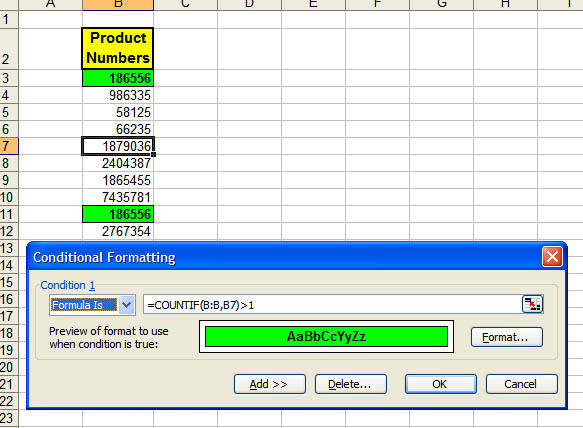 This says, "look through the entire range of column B. Count how many cells in that range are the same value as what is in B3." (In the graphic, B7 is the Active cell.) That same comparison will be made in every cell that contains the conditional formatting. (If your data is in column E and you are setting the first conditional formatting up in E5, the formula would be =COUNTIF(E:E,E5)>1.) Anytime a duplicate appears in the range, it will receive the special formatting. In this example, any time a duplicate number appears anywhere in column B, even if it is not itself formatted, the selected range will reflect the duplicate. =COUNT(B:B,B3)>2 would count entries that appear more than two times. =COUNT(B:B,B3)=2 would count entries that appear twice. If you want only a part of the column in the formula, it is easier to use absolute addresses, such as =COUNT($B$3:$B$200,B3)>1 Adapted from MrExcel.com Also see: Chip Pearson's discussion of duplicates: Contextures.com: Conditional Formatting (See Hide Duplicate Values) See all Topics excel <Doug Klippert@ 3:45 AM
Comments:
Post a Comment
Wednesday, August 13, 2008 – Permalink – Value of Cell in Headeror FooterThe header and footer cannot contain a link to a cell. You can create and run a macro that will put the value of a cell into a footer or header. You could run this macro each time the contents of the specified cell changes. Or use it as an Event code: OzGrid.com: Information from a cell in a worksheet
Excel Basics: Setup Header/Footer
<Doug Klippert@ 4:27 AM
Comments:
Post a Comment
Friday, August 01, 2008 – Permalink – Rank FormattingHighlight the bestUse Conditional formatting to highlight the rank of items in a list. Select the range. Go to Format>Conditional Formatting.... Change the first box to "Formula Is". Enter the following formulas. (Click Add to set the 2nd and 3rd Condition.) =RANK($A2,$A$2:$A$13)=3 =RANK($A2,$A$2:$A$13)=2 =RANK($A2,$A$2:$A$13)=1  (Notice the three way tie for third.) Does a tie for first or third make sense? If you want a unique rank, try a formula like: =RANK(A2,$A$2:$A$13)+COUNTIF($A$2:A2,A2)-1 This will rank the numbers in the order they appear in the list. For a detailed discussion of ranking see: Chip Pearson: Ranking Data In Lists (There is a workbook you can download) See all Topics excel <Doug Klippert@ 2:42 AM
Comments:
Post a Comment
Monday, July 28, 2008 – Permalink – Formatting Codes for Headers and FootersRoll your ownFrom Microsoft support: The following list contains the format codes that you can use in headers and footers.
(font. Be sure to include the quotation marks around the font name.) (font size. Use a two-digit number to specify a size in points.) Codes to insert specific data
In a macro, to use multiple lines in a header, use either of the following methods:
Labels: Formats <Doug Klippert@ 3:26 AM
Comments:
Post a Comment
Sunday, June 29, 2008 – Permalink – Customize Date in FooterFormattingThis subroutine inserts the current date in the footer of all sheets in the active workbook. This process can be accomplished without a macro, however, you'll need the macro if you want to specify the formatting of the current date. An example of the return generated by running this macro is Saturday, March 05, 2005.
Microsoft KnowledgeBase: <Doug Klippert@ 3:11 AM
Comments:
Post a Comment
Sunday, May 04, 2008 – Permalink – Conditional FormattingIf it's Tuesday, it must be mauve
This can be very useful for highlighting important information and values outside an accepted range or providing a visual cue to associate value ranges with color codes. Just click the cells you'd like to format and select Format >Conditional Formatting. The Conditional Formatting dialog box lets you set up the conditions by which the formatting of the cell will occur. You pick the operator (between, equal to, less than, etc.) and the value or range of values. Click Format to open the Format Cells dialog box, where you can select the colors and styles to be used. However, you can format that same cell to exhibit red, bolded text on a green background if it contains a value between 51 and 100. GR Business Process Solutions: Also <Doug Klippert@ 7:03 AM
Comments:
Post a Comment
Saturday, March 29, 2008 – Permalink – Week NumbersWho's counting?For most purposes, weeks are numbered with Sunday considered the first day of the week. This works most of the time, but it can be a little confusing certain years.
If your week starts on a different day, you can use the Analysis ToolPac function:
"The function WEEKNUM() in the Analysis Toolpack addin calculates the correct week number for a given date, if you are in the U.S. The user defined function shown here will calculate the correct week number depending on the national language settings on your computer."
datepart("ww",[DateField],7,1)
<Doug Klippert@ 7:24 AM
Comments:
Post a Comment
Monday, February 25, 2008 – Permalink – Legacy files from 2007Go backRead this article closely. If you work in a situation where you need to work with legacy (pre-2007) files, it may be handy. If you do most of your work in 2007, I wouldn't bother. "When you use Windows Explorer or the desktop to create a new 2007 Microsoft Office file, a new Office file is created in an XML file format (.dox or .xlsx). For example, this behavior occurs when you right-click the desktop, you point to New, and then you click Microsoft Office Word Document. By default, files that you create in the 2007 Office system are in XML file formats. Knowledgebase 935787 See all Topics excel Labels: Formats <Doug Klippert@ 8:01 AM
Comments:
Post a Comment
Sunday, January 13, 2008 – Permalink – Match Format PasteCopy/Paste formatting in Word, PowerPoint or ExcelWhen you copy information from a Web page or another document, the formatting will also be copied. To match the formatting of the target document, copy the text and place the cursor where you want to insert the copy. Then, go to Edit>Paste Special, and select the Unformatted Text option. (Click the arrow under Paste in the Clipboard group on the Home tab in 2007) The clipboard text will be pasted to match the target. Another way when using Word 2002 + is to click on the "Smart icon" that appears at the lower right corner of the pasted text. You can then choose to keep the original formatting, match the destination formatting, keep text only, or apply a new style. An additional way to transfer just the formatting between documents is to highlight the text with the formatting you wish to copy and then hold down the Ctrl key and the Shift key and press the C key (Ctrl+Shift+C). Release the keys. Select the text you want to have formatted. Hold down the Ctrl key and the Shift key and press the V key (Ctrl+Shift+V). Only the formatting is copied, not the text. In Excel use Edit>Paste Special and select the "Formats" option. TechTrax: What's So Special About "Paste Special"? by Linda Johnson, MOS Paste Special can also be used with graphics. You can change Word's default behavior; choose whether to paste Inline or Floating. Microsoft Word MVPS FAQ [Edited entry from 10/31/2004] See all Topics excel Labels: Formats <Doug Klippert@ 6:47 AM
Comments:
Post a Comment
Saturday, January 12, 2008 – Permalink – Spreadsheet DietFormatting bloatAvoid applying formatting to more than just the active area of your worksheet. Extraneous formatting will confuse Excel about the last cell in the spreadsheet. Depending on your OS and specific configuration, you could see symptoms ranging from Excel not responding to various error messages concerning page faults, low virtual memory, and access violations. You may see a warning message; "Too many different formats." To resolve this issue, make sure you select only the particular range of cells you want formatted when you apply specific formatting or select Format>AutoFormat. You can use Ctrl+End to see where Excel thinks the last cell is. For more information, check out: Labels: Formats, Tips, Troubleshooting <Doug Klippert@ 8:32 AM
Comments:
Post a Comment
Monday, July 02, 2007 – Permalink – Data ValidationControl inputMark Rowlinson provides a discussion by Kid Van Ouytsel that does an excellent job explaining data validation. He has also constructs a sample workbook that you can download and play with. Data Validation "Data validation is a tool that can help you control the input/changes someone can make in a spreadsheet. It can help you or your users to make choices, guide them to make relevant input/changes, or restrict input to a specific type of data or structure. It can help you or your users to save time and to keep formulae working properly."
Labels: Formats <Doug Klippert@ 5:41 AM
Comments:
Post a Comment
Friday, June 08, 2007 – Permalink – Location IndicatorPoint to the spotHere's a link to the code that produces conditional formatting on the fly to the cells in the current row and column.  Color banding location See all Topics excel <Doug Klippert@ 5:55 AM
Comments:
Post a Comment
Monday, May 07, 2007 – Permalink – Hide DupsFormat don't showDuplicate entries can be formatted to "disappear", but still be available for computation.
Dups can also stand out:
Hide Duplicate Values Also: Hide Records with Duplicate Cell Entries See all Topics excel <Doug Klippert@ 6:52 AM
Comments:
Post a Comment
Tuesday, February 13, 2007 – Permalink – Open 2007 in 2003-2000Not everyone is going to jump at onceHow to open and to save Word 2007, Excel 2007, and PowerPoint 2007 files in earlier versions of Office Microsoft Office Word, Microsoft Office Excel, and Microsoft Office PowerPoint versions 2000 through 2003 cannot natively open documents that are stored in the Office Open XML Formats in 2007 Microsoft Office programs.
After you install the Compatibility Pack, you can use your existing version of Word, Excel, and PowerPoint to open, edit, and save the file formats that are new to Word 2007, Excel 2007, or PowerPoint 2007. For example:
Word 2000 Compatibility Pack Functions Compatibility Pack Download See all Topics excel <Doug Klippert@ 7:29 AM
Comments:
Post a Comment
|


